22 March 2018

Mount iSCSI target to your Virtualbox VMs

Spent some time on this mounting an iSCSI LUN from a NetApp volume.
In your NetApp SVM enter the new initiator with a default name according to the RFQ:

iqn.2018-03.freebsd.com:freebsd


After creating the netapp svm, lun, lif, etc you can mount the new iSCSI volume with the following command.

PS C:\Program Files\Oracle\VirtualBox> 
.\VBoxManage.exe storageattach freebsd --storagectl "SATA" --port 0 --type hdd --medium iscsi --server 192.168.0.162 --target "iqn.1992-08.com.netapp:sn.944d91542e4811e8b5b800505600c301:vs.4" --tport 3260 --initiator "iqn.2018-03.freebsd.com:freebsd"

Here is an screenshot from the Virtual Media Managet (Ctrl-D) in Virtualbox


Now you can go on and install your preferred OS.


06 October 2017

Set up a Powershell dev environment

For us sysadmins it is important to create scripts on the fly and make things work. By working in an ad-hoc way, our scripts will get lost, not cured and especially not searchable.

Initial tools setup

To better organize our code some personal best practices follow:
Environment: Windows
Install and download TortoiseGit and of course GIT. While installing GIT just select the defaults for you.

Saving code

For every single script it is a better idea to integrate or put all its relative files in a separate folder. Then put all these folders in a single one named: scripts.

After installing TortoiseGIT it is a good idea to go with the First Start wizard.
Select the defaults and in the "configure user information" screen input your name and a valid email address.


The next thing to do is to integrate all your scripts in a GIT repo. With the help of TortoiseGIT this can be easily achieved with only the right click of the mouse

And you are done with the repository creation.

After each working sessions it is a good idea to commit your work. With TortoiseGIT again this can be easily done by a mouse right-click.

Then fill out the commit screen with an appropriate message and then click commit

The commit confirmation screen will show up.


Do the same steps (commit) after each coding session to save your work and your coding history.

Pushing code remotely

After working locally, you might consider storing your code in a server repo. A good one is at GitLab which offers private repos for free.

11 July 2017

How to Install ReportServer on CentOS 7

ReportServer is a free and open source business intelligence (OSBI) platform with powerful reporting and analysis tools. It gathers data from multiple business touch points and generates different reports from the data. It provides a responsive and unified interface to display the data to the user. It provides powerful ad hoc reporting capabilities and integrates Jasper and Eclipse BIRT in one unified environment.
In this tutorial, we will install ReportServer on CentOS 7 server.
Prerequisite
  • Minimal CentOS 7 server
  • Root privileges

Install ReportServer

Before installing any package it is recommended that you update the packages and repository using the following command.
yum -y update

Install JAVA

Once your system is updated, we will install the latest version of Oracle Java into the server. Run the following command to download the RPM package.
wget --no-cookies --no-check-certificate --header "Cookie:oraclelicense=accept-securebackup-cookie" "http://download.oracle.com/otn-pub/java/jdk/8u131-b11/d54c1d3a095b4ff2b6607d096fa80163/jdk-8u131-linux-x64.rpm"
If you do not have wget installed, you can run the yum -y install wget to install wget. Now install the downloaded RPM using the following command.
yum -y localinstall jdk-8u131-linux-x64.rpm
You can now check the Java version using the following command.
java -version
You will get the following output.
[root@liptan-pc ~]# java -version
java version "1.8.0_131"
Java(TM) SE Runtime Environment (build 1.8.0_131-b11)
Java HotSpot(TM) 64-Bit Server VM (build 25.131-b11, mixed mode)
You will also need to check if JAVA_HOME environment variable is set. Run the following command for same.
echo $JAVA_HOME
If you get a null or blank output, you will need to manually set the JAVA_HOME variable. Edit the .bash_profile file using your favourite editor. In this tutorial, we will use nano editor. Run the following command to edit .bash_profile using nano.
nano ~/.bash_profile
Now add the following lines at the at the end of the file.
export JAVA_HOME=/usr/java/jdk1.8.0_131/
export JRE_HOME=/usr/java/jdk1.8.0_131/jre
Now source the file using the following command.
source ~/.bash_profile
Now you can run the echo $JAVA_HOME command again to check if the environment variable is set or not.
[root@liptan-pc ~]# echo $JAVA_HOME 
/usr/java/jdk1.8.0_131/

Install Tomcat Server

Once JAVA is installed, you will need to install Tomcat server. Tomcat is an application server for JAVA applications. Run the following command to create tomcat user and group.
groupadd tomcat
The above command will create a group named tomcat.
useradd -M -s /bin/nologin -g tomcat -d /opt/tomcat tomcat
The above command will create a user tomcat having no login shell and home directory as /opt/tomcat.
Now download the Tomcat archive from Tomcat download page using the following command.
cd ~
wget http://www-us.apache.org/dist/tomcat/tomcat-8/v8.5.15/bin/apache-tomcat-8.5.15.tar.gz
Now we will install the tomcat server in /opt/tomcat directory. Create a new directory and extract the archive using the following command.
mkdir /opt/tomcat
tar xvf apache-tomcat-8*tar.gz -C /opt/tomcat --strip-components=1
Now provide the ownership of the files to tomcat user and group using the following command.
chown -R tomcat:tomcat /opt/tomcat

Install PostgreSQL

Now that we have Tomcat set up, you can proceed to install PostgreSQL database server. Run the following command to install PostgreSQL.
yum -y install postgresql-server postgresql-contrib
Now initialize the database using the following command.
postgresql-setup initdb
Start and enable PostgreSQL database service using the following command.
systemctl start postgresql
systemctl enable postgresql
Now run the following command to change the password of PostgreSQL root user called postgres using the following command.
sudo -u postgres psql postgres
\password postgres
Enter \q or <kbd>ctrl + D</kbd> buttons to exit Postgres shell.
Now run the following command to create a new database for ReportServer database reportserver.
sudo -u postgres createdb reportserver
Now run the following command to create a new user for ReportServer database.
sudo -u postgres createuser -P -s -e reportserver
You will need to enter the password twice. You should get the following output.
[root@liptan-pc ~]# sudo -u postgres  createuser -P -s -e reportserver
Enter password for new role:
Enter it again:
CREATE ROLE reportserver PASSWORD 'md5171d269772c6fa27e2d02d9e13f0538b' SUPERUSER CREATEDB CREATEROLE INHERIT LOGIN;
Now assign the database user to the database using following command.
sudo -u postgres psql
GRANT ALL PRIVILEGES ON DATABASE reportserver TO reportserver;
exit the shell using \q.
Now you will need to edit a PostgreSQL configuration file so that the database can be connected without the postgres user. Edit the pg_hba.conf using any editor.
nano /var/lib/pgsql/data/pg_hba.conf
Find the following lines and change peer to trust and idnet to md5.
# TYPE  DATABASE        USER            ADDRESS                 METHOD

# "local" is for Unix domain socket connections only
local   all             all                                     peer
# IPv4 local connections:
host    all             all             127.0.0.1/32            ident
# IPv6 local connections:
host    all             all             ::1/128                 ident

Once updated, the configuration should look like shown below.
# TYPE  DATABASE        USER            ADDRESS                 METHOD

# "local" is for Unix domain socket connections only
local   all             all                                     trust
# IPv4 local connections:
host    all             all             127.0.0.1/32            md5
# IPv6 local connections:
host    all             all             ::1/128                 md5
Now restart PostgreSQL server using the following command.
systemctl restart postgresql

Install ReportServer

Now that we have both Tomcat and PostgreSQL setup, we can download and setup ReportServer. Run the following command to download ReportServer using following command.
wget https://downloads.sourceforge.net/project/dw-rs/bin/3.0/RS3.0.2-5855-2016-05-29-17-55-24-reportserver-ce.zip -O reportserver.zip
You can always find the link to the latest version using the following link.
Now remove everything in the web ROOT folder of Tomcat installation using the following command.
rm -rf /opt/tomcat/webapps/ROOT/*
Now extract the ReportServer archive using the following command.
unzip reportserver.zip -d /opt/tomcat/webapps/ROOT/
Now copy the configuration file from the example files using the following command.
cp /opt/tomcat/webapps/ROOT/WEB-INF/classes/persistence.properties.example /opt/tomcat/webapps/ROOT/WEB-INF/classes/persistence.properties
Now open the persistence.properties file and provide the database information which we have created earlier.
nano /opt/tomcat/webapps/ROOT/WEB-INF/classes/persistence.properties
Now add the following lines at the end of the file.
hibernate.connection.username=reportserver
hibernate.connection.password=StrongPassword
hibernate.dialect=net.datenwerke.rs.utils.hibernate.PostgreSQLDialect
hibernate.connection.driver_class=org.postgresql.Driver
hibernate.connection.url=jdbc:postgresql://localhost/reportserver
Change the username, password and database name according to the database set created by you.
Now provide the necessary ownership using the following command.
chown -R tomcat:tomcat /opt/tomcat/webapps/ROOT/
Now initialize the ReportServer database using the following command.
psql -U reportserver -d reportserver -a -f /opt/tomcat/webapps/ROOT/ddl/reportserver-RS3.0.2-5855-schema-PostgreSQL_CREATE.sql
It will ask you the password of your database user, provide the password and it will run the DDL script to initialize the database.
Finally, you will need to create a Systemd script to run tomcat server.
Create a new Systemd file using the following command.
nano /etc/systemd/system/tomcat.service
Copy and paste the following content into the file.
[Unit]
Description=Apache Tomcat Web Application Container
After=syslog.target network.target

[Service]
Type=forking

Environment=JRE_HOME=/usr/java/jdk1.8.0_131/jre
Environment=CATALINA_HOME=/opt/tomcat
Environment=CATALINA_BASE=/opt/tomcat
Environment='JAVA_OPTS="-Djava.awt.headless=true -Xmx2g  -XX:+UseConcMarkSweepGC -Dfile.encoding=UTF8 -Drs.configdir=/opt/reportserver"'

ExecStart=/opt/tomcat/bin/startup.sh
ExecStop=/opt/tomcat/bin/shutdown.sh

User=tomcat
Group=tomcat
UMask=0007
RestartSec=10
Restart=always

[Install]
WantedBy=multi-user.target
Now you can start the application using the following command.
systemctl start tomcat
To enable Tomcat service to automatically start at boot time, run the following command.
systemctl enable tomcat
To check if the service is running, run the following command.
systemctl status tomcat
If the service is running, you should get the following output.
[root@liptan-pc reportserver]# systemctl status tomcat
? tomcat.service - Apache Tomcat Web Application Container
   Loaded: loaded (/etc/systemd/system/tomcat.service; enabled; vendor preset: disabled)
   Active: active (running) since Wed 2017-06-07 15:00:32 UTC; 4min 41s ago
 Main PID: 13179 (java)
   CGroup: /system.slice/tomcat.service
           ??13179 /usr/java/jdk1.8.0_131/jre/bin/java -Djava.util.logging.config.file=/opt/tomcat/conf/logging.propert...

Jun 07 15:00:32 liptan-pc systemd[1]: Starting Apache Tomcat Web Application Container...
Jun 07 15:00:32 liptan-pc systemd[1]: Started Apache Tomcat Web Application Container.
You can now access your application on the following URL.
http://your-server-ip:8080
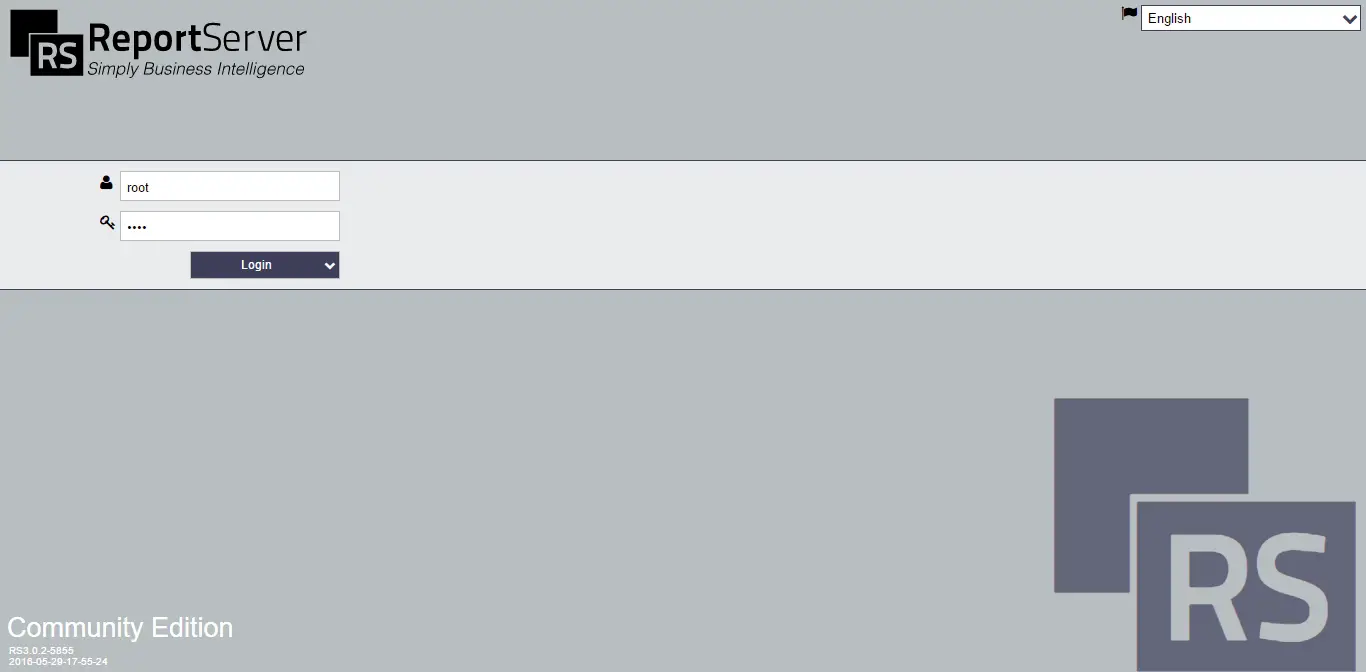
You will see the following login interface.
ReportServer Login
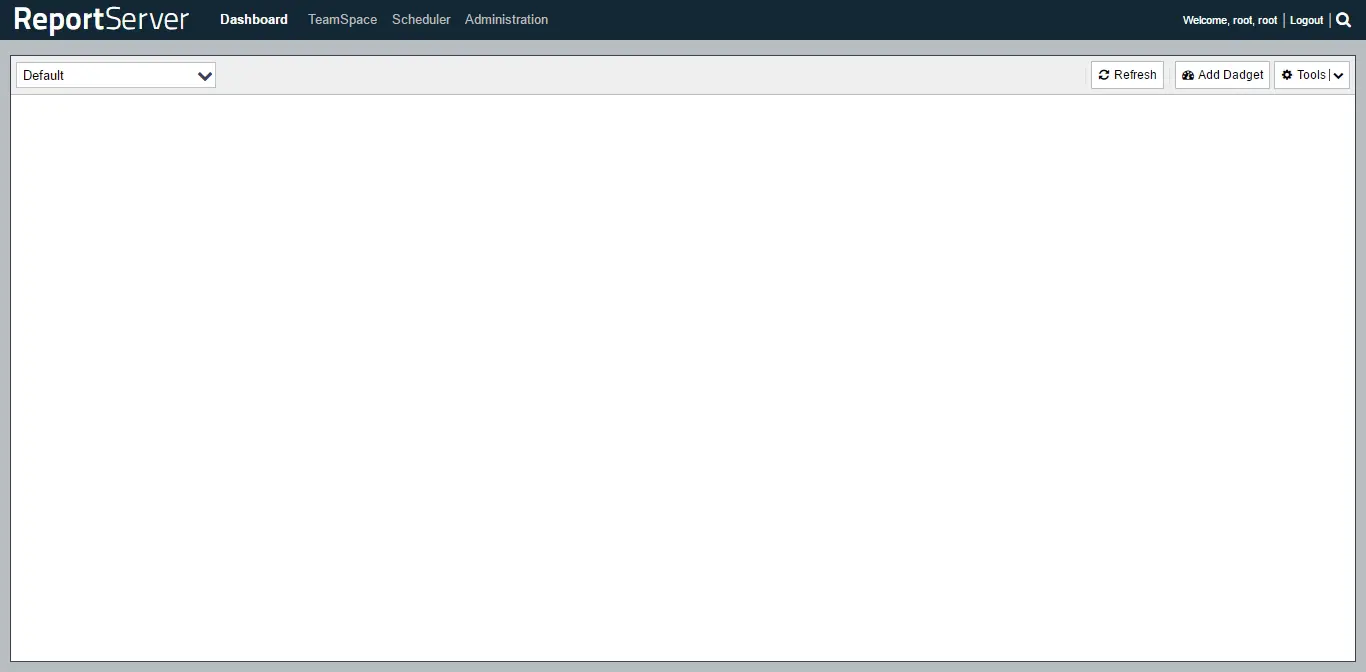
You can now log in to your website using the username root and password root. Once you are logged in, you will see your default dashboard.
ReportServer Dashboard
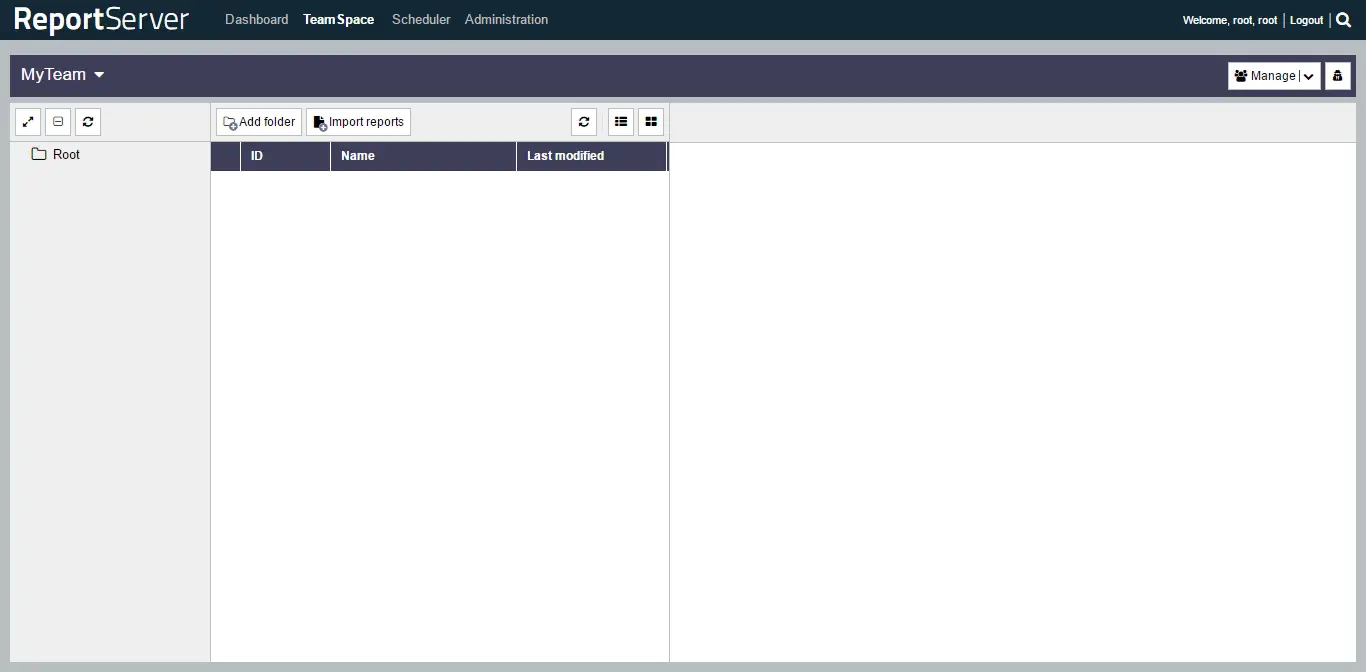
On the dashboard, you can add the tools and widgets according to your choice. You can access TeamSpace by clicking on TeamSpace link from the top bar.
TeamSpace
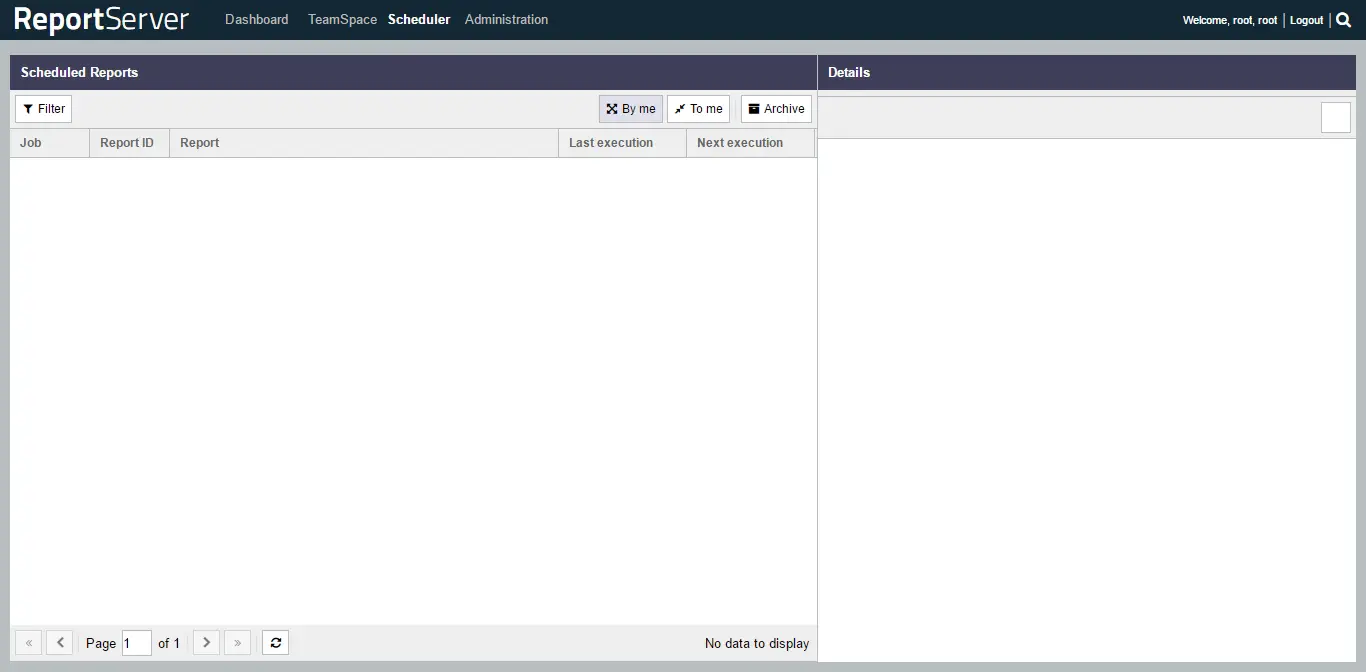
You can configure scheduled reporting from Scheduler menu. You can access Scheduler by clicking Scheduler link from top bar.
Report Scheduler
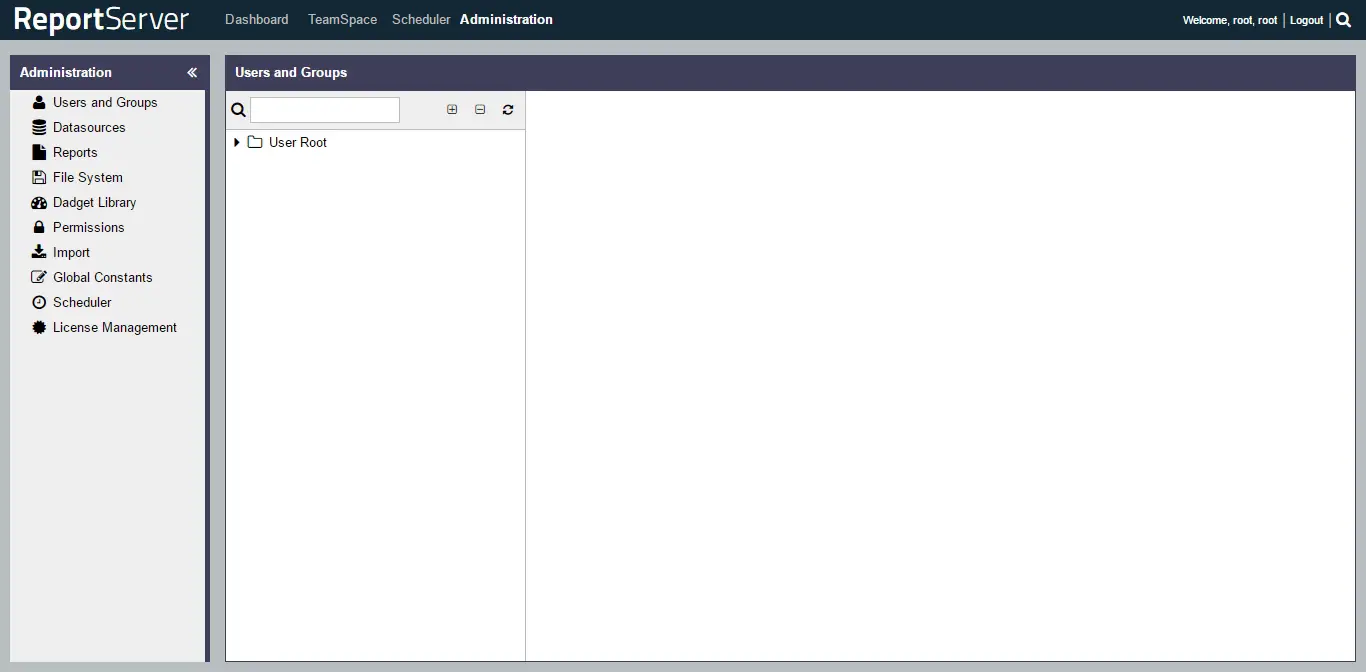
To change the password and access administration dashboard, click on Administration link from the top menu.
Change password in ReportServer

Conclusion

In this tutorial, we learned how to install ReportServer on CentOS 7. You can now use the application to analyse and generate different reports for your firm.

18 June 2017

Get your public IP address from Ripe NCC

If you are using PowerShell and in the console or the scripts you need to have your public IP address then Ripe NCC can really help you get this.


You can query RIPE stat servers and receive your IP address as JSON and save it in a variable to use it later. To get the JSON data just excecute this:

C:\Windows\system32> $a = (Invoke-WebRequest -Uri "https://stat.ripe.net/data/whats-my-ip/data.json" | ConvertFrom-Json) 

and you should have this output:

PS C:\Windows\system32> $a

status           : ok
server_id        : stat-app15
status_code      : 200
version          : 0.1
cached           : False
see_also         : {}
time             : 2017-06-18T21:49:27.221689
messages         : {}
data_call_status : supported
process_time     : 24
build_version    : 2017.6.15.213
query_id         : 000c524e-5470-11e7-8856-00505688b546
data             : @{ip=123.123.123.123}

If you just need the IP address then filter out only the IP address object like this:
$ip_address = (Invoke-WebRequest -Uri "https://stat.ripe.net/data/whats-my-ip/data.json" | ConvertFrom-Json).data.ip

output:
PS C:\Windows\system32> $ip_address
123.123.123.123


27 October 2016

Build open source clouds with 4 OpenStack guides and tutorials

Every time you turn around, it seems like there’s a new open source project which might be of value to a cloud administrator. A huge number of these projects fall under the umbrella of OpenStack, the open source cloud toolkit.
Fortunately, there are plenty of tools out there to help with growing your OpenStack knowledge base, from meetups and in-person training, to mailing lists and IRC channels, to books, websites, and the official documentation.
Adding to that list are many individual members of the OpenStack community who are sharing their own tutorials, guides, and other helpful information across their own blogs and community sites. In order to help you keep up with these, every month Opensource.com takes a look a the latest community-created educational content for OpenStackers and brings it to you here.

  • One of the more interesting aspects of OpenStack is that it really is a composable toolkit of different projects which are designed to be used in conjunction with one another but which can provide value to other projects outside of OpenStack itself. One great example of that are OpenStack’s storage projects, which can be used independently of OpenStack or swapped out within an OpenStack cloud. Recently, John Griffith provided a great tutorial for how OpenStack’s Cinder block storage project can be used with Docker and Linux container systems.
  • One of the challenges that comes up in having so many different interchangeable parts, particularly with storage components, is knowing how to choose the right one for your needs and the needs of your cloud’s users. Learn all about the various factors that are important to consider in this guide to selecting a storage backend for OpenStack.
  • Mistral provides a workflow service within OpenStack, which the TripleO project recently adopted in the most recent release cycle. Like any cloud project, the team encountered a few unexpected hiccups along the way, and documented them in this look at debugging Mistral in TripleO.
  • One challenge of a large project like OpenStack with a diversity of contributors, often working on pseudo-independent projects is that the code base can reflect a variety of different coding styles and bring ambiguities related to uncertainties in the code. Various automated tools can help to reign this in; one such tool, Eslint, is specifically oriented towards JavaScript code. Learn how to implement Eslint for your OpenStack project’s JavaScript-based sections.


Thanks for checking out our website.

18 January 2016

An introduction to OpenStack clouds for beginners

What is OpenStack? Who might use it?

OpenStack is an open source cloud operating system written in Python to manage pools of compute, storage, and networking resources via command-line interface (CLI) or a web-based dashboard. It is designed to run on commodity hardware and is sometimes referred as Infrastructure as a Service (IaaS). OpenStack runs on common Linux platforms such as RHEL, SUSE, or Ubuntu.
OpenStack is an infrastructure (or in simpler terms, a cloud). It can create an environment that provides on-demand increase or decrease of resource allocation, and the resources are not limited to a single location. Big data, web services, and Network Function Virtualization (NFV) for service providers are all good applications for OpenStack.

What are the key services and components of OpenStack? What do they do?

OpenStack follows a bi-annual release cycle, with each release identified by a name instead of number, so the first release was Austin, the current release is Mitaka, and the previous releases were Liberty and Kilo, respectively. Since the Kilo release, OpenStack has started to shift from the incubation/integrated model to the Big Tent model, where projects are tagged with specific attributes.
The major components of a cloud infrastructure are compute, storage, and networking. These used to be called the core services of OpenStack, while all others were called the shared services.
Compute:
  • Nova: Provides virtual machines (VMs) on demand.
Storage:
  • Swift: Provides a scalable storage system that supports object storage.
  • Cinder: Provides persistent block storage to guest VMs.
Networking:
  • Neutron: Provides network connectivity as a service between interface devices managed by OpenStack services.
Shared services:
  • Keystone: Provides authentication and authorization for all the OpenStack services.
  • Glance: Provides a catalog and repository for virtual disk images.
  • Horizon: Provides a modular, web-based user interface for OpenStack services.
  • Ceilometer: Provides a single point of contact for billing systems.
  • Heat: Provides orchestration services for multiple composite cloud applications.
  • Trove: Provides database-as-a-service (DBaaS) provisioning for relational and non-relational database engines.
  • Sahara: Provides a service to provision data intensive application clusters.
  • Magnum: Offers container orchestration engines for deploying and managing containers.
I have listed only the most common projects. New projects are added in each release.
Since switching to the Big Tent approach, more and more projects are now considered a part of OpenStack. There is a committee working on OpenStack DefCore, a minimum required feature set which products must comply with in order to use the OpenStack name.

Why use OpenStack and not just a traditional virtualization tool? What value does it provide over hypervisor?

Virtualization tools abstract the resource from the physical hardware and allow for automation.
OpenStack pushes this one step further by providing an elastic, self-service, and measurable infrastructure for managing a pool of compute, storage, and networking resources. The resources that OpenStack manages can be either physical or virtual.

How can OpenStack work with containers? Why might an enterprise wish to do this?

Project Magnum uses OpenStack as an infrastructure to deploy Docker containers. Before project Magnum, Docker container was listed as a hypervisor type in Nova (a compute service of OpenStack).
In project Magnum, there is a concept of a pods, bays, and services which together as if they were a single application to which access policy can be applied.
The container orchestration engine (COE) allows for the deployment of multiple Docker containers as a unit. At this time, the supported COEs in Magnum are:
One of the popular container applications in the enterprise space is microservices, wherein a big, monolithic application is divided into "micro-services" implemented in the form of containers). This new trend in application deployment provides agility, scalability, and high availability.
The Liberty release introduced project Kuryr, which is built on top of Neutron and addresses networking issues specific to containers in an OpenStack infrastructure.

What does a typical OpenStack deployment look like?

I don't think there's such thing as a typical OpenStack deployment, and that's the beauty of it. While it is not a one-size-fits-all product, OpenStack offers a very flexible and rich infrastructure. What it can offer is limited only by what the architect can come up with. OpenStack is just like a LEGO set; we can pick and chose to fit a particular deployment requirement. Not only are the resources in OpenStack elastic, but the feature set is also elastic in a sense that we can add and delete feature sets.

20 October 2015

Web transport communication

Web communications are like blind men, in fact, all computers are blind. They require sound to identify each other.
Imagine George. Now, George is a popular guy. People are always screaming from the crowd to get answers from George, "Hey, George!"
Sometimes they only want a single word answer that is freely available information;
Hey, George! I'm Ralph!
Hi, Ralph! What's your question?
George, what's the capital of California?
Ralph, it's 'Sacramento"
But what if Ralph wants personal information that only he and George know?
Hey George! It's Ralph!
Hi, Ralph. What can I do for you?
George, I need to know my bank balance.
Now here's a good time to take note of a few things; Notice how George and Ralph keep addressing each other by name? If Ralph just screamed out "What's my bank balance?" at the very least, no one is going to know who the hell Ralph is talking to. It's also important to note the George just sort of trusts that Ralph is telling the truth, that he really is Ralph. What if Jacque wanted to tell George that he was Ralph and ask for Ralph's bank balance? Shouldn't George protect this information?
So now we arrive at George checking if Ralph is legit:
Ralph, I can tell you your balance, but I need your password
Now here's the thing about web sessions or "conversations", since computers are blind, the only way that can continue a multi-sentenced conversation in such a noisy crowd is to address each other every time; Ralph, George, Ralph, George. Each sentence is a different REQUEST/RESPONSE. And when you have to start establishing identity, George is going to have to ask for the password every time Ralph wants something, but that is both tedious and dangerous; someone listening in on the conversation could learn the password. So George and Ralph agree on a shorter, temporary password that REPRESENTS the real one. This password actually references the STATE the conversation between the two is currently in; Ralph has already provided the password and George has authenticated it. The STATE of this conversation is that George now knows he's talking to Ralph, and every time the agreed phrase is provided to George by Ralph, George knows to continue where they left off instead of starting a new conversation (in fact, if Ralph continues to forget to provide the "conversation state" enough times and George is lead to believe that it's a new conversation each time, George will eventually stop talking to Ralph). So after Ralph provides his password, George can respond with this temporary "ticket" that Ralph can give George every time he wants to ask George for resource.

Creating a new LDAP server with FreeIPA and configure to allow vSphere authentication

Was setting up a new FreeIPA sever for my homelab and found out that the default configuration in FreeIPA does not allow you to use VMware v...